If Gothic 1 Remake feels uneven, start with a controlled test instead of changing every option at once. This performance guide separates hardware limits, frame-pacing problems, patch effects and mod conflicts, then gives you a practical order for checking each one.
Official Gothic 1 Remake screenshot used for visual context. It is not a benchmark and does not prove a frame-rate target.quick answer
What should you check first when Gothic 1 Remake stutters?
Start by recording the exact symptom, location, display resolution, graphics preset, driver state, patch channel and whether mods are enabled. Then reproduce the same scene with one change at a time. A short repeatable test tells you more than a high average FPS number from a quiet corridor.
For a first pass, cap the frame rate at a target your PC can hold, lower resolution scale or shadows, close heavy background apps, and compare a clean launch with the same save. If the problem disappears after removing a mod or returning to the default branch, treat that as a useful lead rather than proof that every player needs the same setting.
The official Steam page remains the source of truth for current PC requirements and the official news feed is the source for patch context. Neither source gives this page permission to promise universal 60 FPS, 4K output or identical results across every CPU, GPU, driver and scene. Use the checklist below to find the narrowest explanation you can verify.
symptom map
Match the symptom to the first test
Use one controlled change at a time. The suggested first test is a diagnostic step, not a guaranteed fix.
What you notice
Likely area to check
First controlled test
Short freezes when entering a new camp or cave
Streaming, storage, memory pressure or background load
Repeat from the same save with background apps closed and the game on an SSD if available.
Low average FPS in every scene
GPU limit, resolution scale or a hardware mismatch
Lower resolution scale first, then compare a lower preset at the same resolution.
Smooth camera but uneven combat input
Frame pacing, an unstable cap or input latency
Use a conservative cap and test the same combat encounter without changing other options.
The problem began after a patch or driver update
Changed files, branch state, shader cache or new defaults
Record the version, return to the stable branch and verify files before retesting.
Only a modded save shows the issue
Mod compatibility or load order
Back up the save, launch without optional mods and compare a clean reproduction.
One busy area is worse than the rest
Scene complexity, shadows, view distance or streaming
Test the same route with shadows and view distance reduced, then restore one setting.
settings order
Best settings to test for Gothic 1 Remake performance
Do not chase a preset label as if it were a diagnosis. Change the setting that maps to the symptom. Resolution scale usually gives the clearest GPU relief; shadows and post-processing can reduce the cost of busy outdoor scenes; view distance can affect both image quality and world streaming. Keep a note of the old value so you can undo a change that improves one area but harms another.
A stable target is often more useful than a high but erratic number. If the game swings between smooth and uneven frame times, try a reasonable cap and compare camera movement, combat timing and menu responsiveness. This guide does not choose a universal cap because monitor refresh rate, hardware headroom and player sensitivity differ.
Use the existing system requirements guide for the official minimum and recommended baseline. This page starts after that check: it explains how to isolate a setting or environment variable when the PC technically launches the game but the experience still feels inconsistent.
Official combat screenshot. Combat timing is a useful repeatable test, but this image is not evidence of a measured FPS result.
1
Set a repeatable target
Choose a frame-rate cap your system can approach in a busy scene and keep it fixed during the comparison.
2
Lower resolution scale
Test this first when the GPU is the obvious limit; keep the display resolution recorded.
3
Reduce shadows
Compare the same outdoor route because dense camps can expose shadow-cost differences.
4
Check view distance
Use a repeatable overlook or road and watch whether streaming or CPU load changes.
5
Restore one value
Put settings back one at a time so you know which change actually helped.
patch aware testing
How to test a performance fix after a patch
A patch can change shaders, streaming behaviour, defaults or file layout while your save and graphics configuration remain from an earlier build. Before calling a change a fix, write down the displayed version, platform, branch, driver date and exact scene. Use the same save point and the same route before and after the update.
On Steam, return to the normal stable branch unless the official announcement specifically asks you to test a branch. Let the update finish, run file verification when appropriate, launch once without optional mods and then repeat the test. The patch notes guide explains why a public test build, a stable PC update and a console update should not be treated as identical evidence.
If a problem changes but does not disappear, report the difference precisely: fewer freezes, shorter pauses, a different area, or a new crash pattern. A measured change is more useful than saying that a patch made the game feel better or worse without naming the conditions.
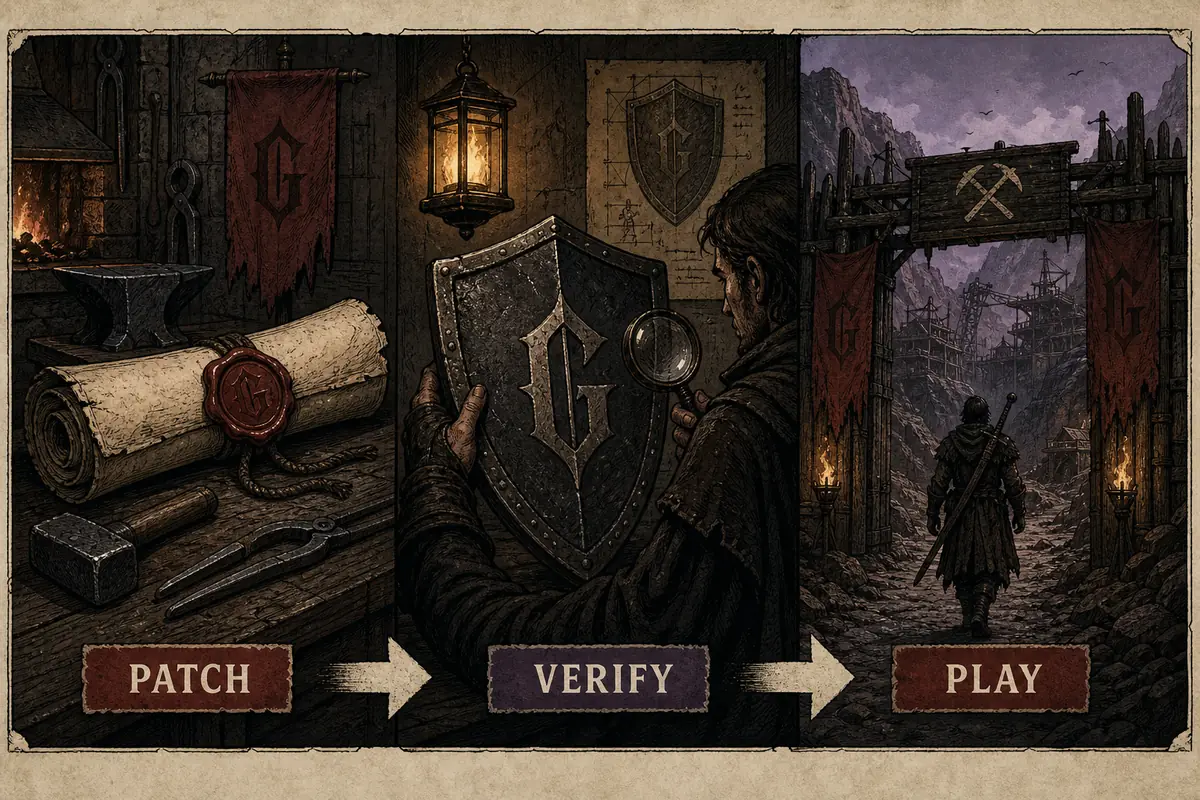
Editorial checklist illustration, not an official game screenshot or UI. Use the official platform updater and news feed for the real patch path.
Record
Version, branch, driver, hardware, settings, save point and the exact symptom.
Isolate
Stable branch, verified files and one clean launch without optional mods.
Repeat
Same route, same camera movement and same combat or traversal action after the update.
hardware versus mods
When hardware, drivers or mods are the real cause
A system that meets the official requirement can still struggle at a chosen resolution or preset. Minimum requirements describe a supported baseline, not a promise that every busy scene will hold a preferred frame rate. Compare the actual CPU, GPU, VRAM, memory and storage setup with the current Steam listing, then set a realistic target before deciding that the game is broken.
Mods add another variable. A mod can change assets, scripts, shaders or load order, and a save created with a mod may not reproduce the same way in a clean launch. Follow the mods guide safety order: back up saves, note the mod version, remove one variable at a time and never download an unverified executable that claims to be a performance patch.
Drivers and overlays should be tested with care. Update from the hardware vendor, disable one overlay at a time, and keep the before-and-after notes. If only one game or one save is affected, that evidence points toward a narrower software or content interaction; if every demanding game is unstable, the investigation belongs at the system level.
Hardware limit
The GPU or CPU stays saturated even in a clean launch; lower the matching workload and compare.
Environment limit
Background apps, storage pressure, drivers or overlays change the result across launches.
Content conflict
Only a modded profile or save reproduces the issue; isolate it before changing hardware.
reporting checklist
What to include in a useful Gothic 1 Remake performance report
A useful report lets another player or the developer reproduce the same conditions. Include the platform and store, patch or branch, CPU, GPU, RAM, operating system, display resolution, graphics settings, frame-rate cap, driver date, mods, save location and a short sequence of actions. Say whether the issue is a steady low frame rate, a hitch, a crash, input delay or a visual artifact.
Use a short clip only when it shows the symptom and identifies the conditions. A cinematic trailer or a screenshot from an unknown build cannot prove current performance. Link readers to the official Steam guide for the live store route and to the review guide for separating performance risk from broader buyer fit.
Finally, keep the wording proportional to the evidence. Say that a setting reduced a repeatable hitch on your PC, not that it fixes the game for everyone. That distinction keeps the guide useful when a later patch, driver or hardware configuration changes the result.
Use the official demo route as a pre-purchase check, while keeping its scope separate from the full game.
performance faq
Gothic 1 Remake Performance FAQ
Why does Gothic 1 Remake have such bad performance on my PC?
There is no single answer. Check whether the issue is low average FPS, frame-time hitching, a busy-area drop, a patch change or a mod conflict. Record the scene and test one variable at a time before deciding whether the cause is hardware, software or content.
What are the best settings for Gothic 1 Remake performance?
Start with a realistic frame-rate cap, then test resolution scale, shadows, post-processing and view distance in that order. The best combination depends on your hardware and target resolution, so keep the comparison scene fixed.
Can mods cause Gothic 1 Remake stuttering?
They can add a variable by changing assets, scripts, shaders or load order. Back up saves and compare a clean launch without optional mods before claiming that a mod or the base game is responsible.
Should I lower resolution or shadows first?
Resolution scale is usually the clearest first GPU test. Shadows are a useful second comparison in busy outdoor scenes. Change one setting, repeat the same route and restore it if the result is worse elsewhere.
Does a new patch guarantee better PC performance?
No. A patch may fix a specific issue, change defaults or affect some hardware differently. Check the official news feed, record the new version and repeat the same test rather than assuming every stutter is fixed.
What should I include in a Gothic 1 Remake performance report?
Include platform, store, patch or branch, hardware, operating system, resolution, settings, driver date, mods, save location and the exact action that reproduces the issue. Distinguish low FPS, hitching, crash, input delay and visual artifacts.
first-party sources
Verify the live technical context
Store requirements and patch notes can change. Use these official pages for the current values and release context behind this guide.