Gothic 1 Remake Mods Guide: 7 Safe Checks Before Installing
This Gothic 1 Remake mods guide explains where to look for community mods, what to verify before installing, why console players need different expectations and how to avoid turning a first playthrough into a broken test build.
Use official game pages for the base game and trusted community hubs for mods; this fan guide does not host mod files.quick answer
Where should you start with Gothic 1 Remake mods?
Start with trusted mod hubs such as Nexus Mods and active community discussions, then verify the mod version, required files, install path, comments and recent update date before touching your saves. Do not treat a random download mirror as a mod source just because it mentions Gothic 1 Remake mods.
The best first modding rule is conservative: finish enough of the base game to know what you want to change, create a clean save backup, install one mod at a time and test in a low-risk area. If a mod changes combat, graphics, UI, translation, saves or progression, assume it can conflict with updates until the author confirms compatibility.
Console players should also set realistic expectations. PS5 and Xbox versions generally do not use the same loose-file PC mod workflow unless the developer and platform explicitly support it. For now, treat Gothic 1 Remake modding as a PC-first topic and use console store pages for official patches, not community file installs.
community media
Watch a mod-focused community overview only after checking the source
A video can help you recognize what mod managers, load order notes and visual comparison clips look like, but it should not replace the mod author's install instructions. Use videos as orientation, then return to the written source page before installing.
If a video links to a direct file that is not the author's page, skip the file and search for the original listing. Community media is useful when it explains the workflow; the download decision should still happen on a trusted mod page.
Community mod overview loading
Embedded community media is included as orientation, not as an official download source.
Use this table before installing a mod, especially after a patch or on a first playthrough.
Check
Why it matters
Best action
Trusted source
Mod files should come from recognizable community hubs or the author's own page, not reposted mirrors.
Start with Nexus Mods, Steam Community or a clearly credited author page.
Game version
Patches can change executable, save, script or asset behavior and break older mods.
Read the mod's update date and compare it with the latest official patch notes before installing.
Required files
Some mods depend on loaders, frameworks or other packages.
Install only the documented requirements and avoid bundled mystery archives.
Save safety
A mod can alter progression or create save states that are hard to revert.
Back up your save folder and keep a clean pre-mod save before testing.
Console limits
PS5 and Xbox builds usually cannot use PC-style community files unless official support exists.
Use official platform patches on console and avoid sites promising console mod installers.
safe workflow
The 7 checks to make before installing a mod
A safe Gothic 1 Remake mods workflow is slower than a download-and-drag habit, but it prevents the most common problems: corrupted saves, mismatched versions, conflicting files and unclear uninstall paths. Treat each mod as a change to your game environment, not as a harmless cosmetic switch.
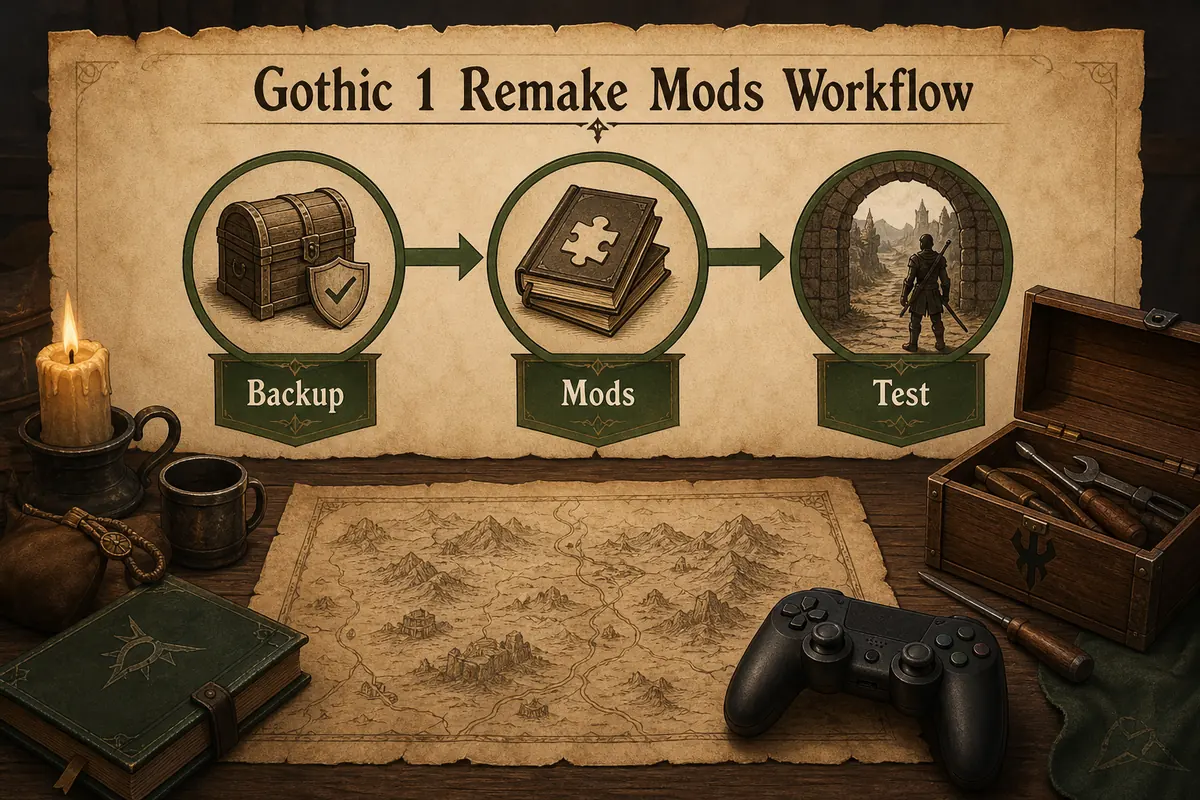
Use this sequence: back up saves, read the full mod page, check the required game version, scan recent comments, install one mod at a time, test for ten minutes, then keep notes on what changed. If the game crashes, disable the most recent mod first rather than removing random files.
The safest modding loop is simple: backup first, install deliberately, then test before adding more changes.
1
Back up saves
Keep a copy outside the game folder before changing files.
2
Read instructions
Do not rely on a video summary when the author provides written requirements.
3
Check patch state
A mod marked for an older build may still work, but you should treat it as unverified.
4
Install one mod
Testing one change at a time makes troubleshooting possible.
mod types
Which mod types are usually safest to test first?
Cosmetic texture swaps, camera tweaks, interface adjustments and small quality-of-life changes are usually safer first tests than overhaul mods. They can still fail, but they are less likely to rewrite your whole progression model. A combat rebalance, quest edit or save-system change deserves more caution.
For a first playthrough, avoid stacking many changes that alter difficulty, economy, quests and progression at the same time. You may no longer know whether a problem comes from Gothic 1 Remake itself, a patch, a mod conflict or your own load order.
If your goal is a cleaner first run, start with non-invasive visual or interface changes after you understand the base game. If your goal is experimentation, use a separate save profile and document every file you changed.
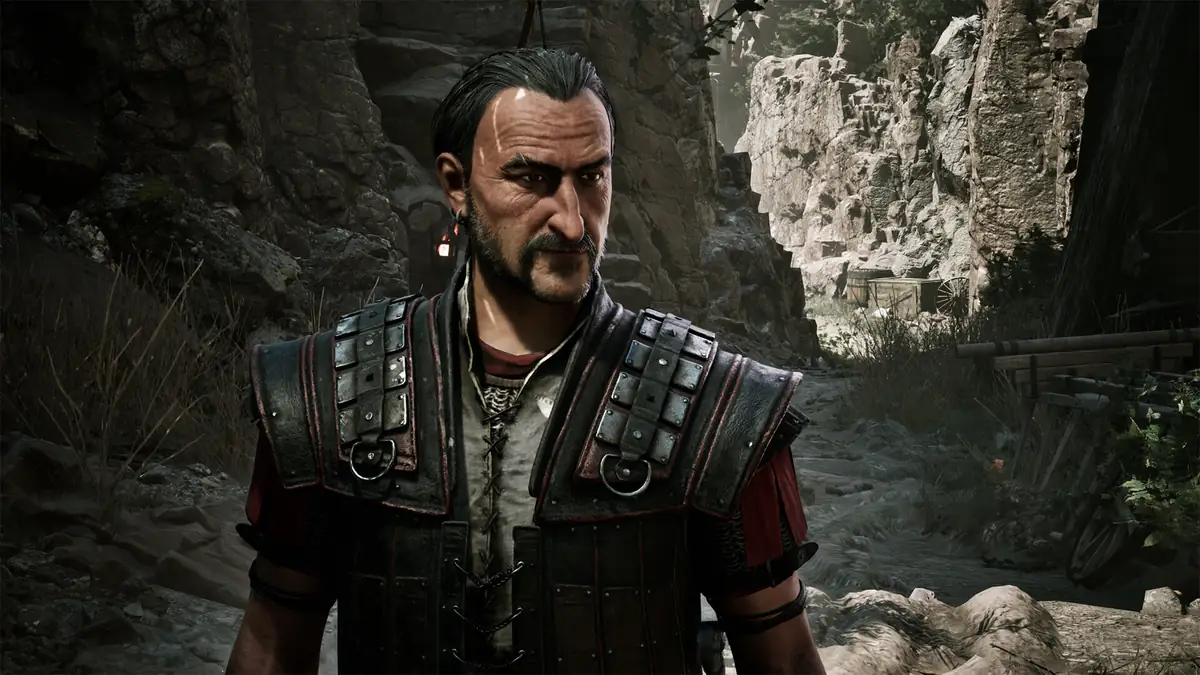
Official screenshot context: visual changes, combat changes and progression changes should be tested separately.
Lower-risk first tests
Visual tweaks, small UI changes and optional quality-of-life fixes with clear uninstall steps.
Higher-risk changes
Quest edits, combat overhauls, save changes, script loaders and bundled mod packs.
Best first-run rule
Keep the first save close to vanilla unless a mod solves a problem you clearly understand.
platform limits
PC mods vs PS5 and Xbox expectations
Most community modding workflows are PC-first because PC players can access local files, mod managers and community archives more directly. Console builds work through platform stores, certification rules and official patch channels. That does not make console versions worse; it means the install path is different.
If you are searching for Gothic 1 Remake PS5 mods, be cautious. Unless the developer and PlayStation listing explicitly support mod installation, assume community file mods are not available in the same way they are on PC. A site promising a PS5 mod package or USB installer should be treated as unsafe until official support says otherwise.
This distinction is important for SEO because mod keywords often overlap with download keywords. Gothic1Remake.blog should help users separate legitimate PC community mods from unsafe console download promises.
PC
Use trusted mod hubs, back up saves and verify patch compatibility.
PS5 and Xbox
Use official platform updates unless mod support is clearly announced.
Unsafe signal
A console mod installer from an unknown mirror is not a reliable source.
troubleshooting
What to do when a mod breaks Gothic 1 Remake
Do not panic-delete the game folder. First, write down the last change you made, disable the most recent mod and test the same save. If the issue remains, restore the clean backup and test the game without community files. That tells you whether the base game, the save or the mod stack is the likely cause.
Check the mod comments for reports after the latest patch. If several players report the same crash, wait for the author to update the file. If only your install fails, re-read requirements and confirm the path, loader and dependencies. Avoid mixing two mods that edit the same combat, quest or UI files unless the authors say they are compatible.
Keep notes. A small text file with install dates, mod names and versions is more useful than memory after ten experiments.
1
Disable last change
Start with the newest mod instead of removing everything randomly.
2
Restore clean save
Use your pre-mod backup to confirm whether the save was affected.
3
Read recent comments
Patch-related reports often appear in community comments before formal documentation.
4
Wait for updates
Do not force an outdated mod into a new patch if the author warns against it.
Learn the base game's first-run habits before changing difficulty or progression.
mods faq
Gothic 1 Remake Mods FAQ
Are Gothic 1 Remake mods available?
Yes, community mod interest exists and trusted hubs such as Nexus Mods are the first place to check. Always verify the mod page, version notes and comments before installing.
Can I use Gothic 1 Remake mods on PS5?
Assume PC-style community mods are PC-only unless the developer and PlayStation store explicitly support console mod installation. Do not trust unknown PS5 mod installer downloads.
What should I back up before installing mods?
Back up your saves and keep a clean pre-mod save. If possible, also note the original game folder state or use your storefront's verify-files option.
Should beginners install mods on the first run?
Beginners should keep the first run close to vanilla unless a mod fixes a specific problem they understand. Heavy overhauls are better after learning the base game.
Where should I download Gothic 1 Remake mods?
Use trusted community hubs, author pages or Steam Community links. Avoid reposted mirrors, repacks and files that bundle unrelated executables.